Ask any IT lead whether their Microsoft 365 data is backed up and most will say yes. The platform is highly available, geo-redundant, and rarely goes down, so surely the email and files are safe. That assumption is wrong, and it is the single most expensive misconception in cloud IT today.
Microsoft protects the platform. You protect the data. The gap between those two responsibilities is exactly where real-world data loss happens: accidental deletion, ransomware, malicious insiders, and departed employees. This guide explains what Microsoft actually covers, why native retention is not backup, and how to build a real backup strategy that survives an audit and a ransomware attack alike.
The Shared Responsibility Model: The Gap That Catches SMBs
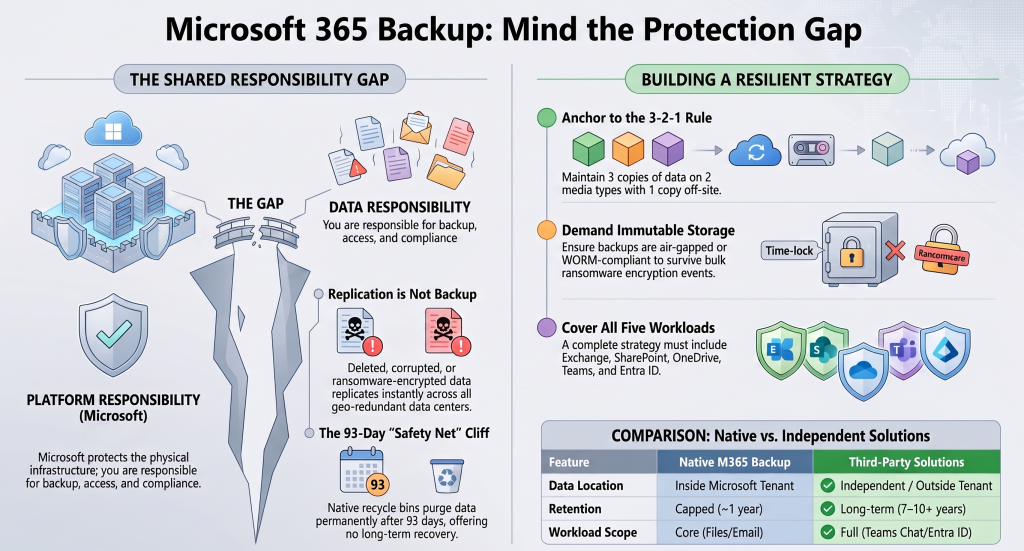
Every major SaaS provider operates on a shared responsibility model, and Microsoft is explicit about it in the Microsoft Services Agreement. Microsoft keeps the service running. You are responsible for your data.
Microsoft’s responsibility covers physical infrastructure, network availability, and geo-redundant replication. Your responsibility covers data backup and recovery, access control, retention configuration, and compliance across every workload.
The critical point most SMBs miss: replication is not backup. Deleted data replicates as deleted. Corrupted data replicates as corrupted. Ransomware-encrypted data replicates as encrypted. Geo-redundancy protects against a datacenter failure, not against your own users, attackers, or mistakes.
What Microsoft Actually Protects, and What It Doesn’t
What Microsoft covers
- Platform uptime, backed by a 99.9% availability SLA
- Hardware and datacenter failures
- Geo-redundant replication across regions
- Short-term recovery within limited native windows
What Microsoft does not cover
- Long-term recovery of deleted or purged data
- Point-in-time restore of a mailbox or site to a specific moment
- Recovery from ransomware encryption or bulk overwrite
- Data from employees who left more than 30 days ago
- An independent copy stored outside the Microsoft tenant
The Native Safety Nets Are Not Backup
Microsoft 365 provides several useful safety nets. None of them is a backup, because all of them live inside the same tenant they are meant to protect.
- The recycle bin holds deleted items for a maximum of 93 days, then purges them permanently. An attacker with access can empty it early.
- Departed-user data is deleted roughly 30 days after the license is removed, a common and painful gap during staff turnover.
- Retention policies in Purview prove that content existed for a regulator. They were never designed to restore 400 mailboxes to how they looked last Tuesday. Worse, when ransomware encrypts data, retention faithfully preserves the encrypted version.
- Version history helps until an attacker floods versions or deletes the library entirely.
Availability is not recoverability. Microsoft gives you outstanding availability. It does not guarantee you can roll back to clean data on your terms.
The Data-Loss Scenarios Microsoft Won’t Save You From
Backup exists for the moments native tools fail. These are the ones that generate the real incident calls:
- Accidental deletion. Human error remains the top cause of data loss. A user deletes a folder, then empties the recycle bin.
- Ransomware and mass encryption. The OneDrive sync client dutifully syncs encrypted files to the cloud. Retention preserves them exactly as encrypted.
- Malicious insiders. A departing employee wipes SharePoint project folders and clears the bin before their last day.
- Departed-employee data loss. Licenses get reclaimed for cost savings, and 30 days later the data is gone.
- Misconfiguration. A wrong retention or lifecycle setting silently destroys content at scale.
The Five Workloads That Need Backup
A complete backup strategy covers all five Microsoft 365 workloads, each with distinct data and recovery needs:
- Exchange Online mail, calendars, and contacts
- SharePoint Online sites, libraries, and metadata
- OneDrive for Business individual user files
- Microsoft Teams chats, channel messages, files, and settings, spread across multiple underlying services
- Microsoft Entra ID identity, groups, and configuration
Teams and Entra ID are the two most commonly overlooked, and they cause most of the “the backup didn’t help us” stories. Teams data in particular lives across several services, so always confirm which Teams components a solution actually protects.
Native Microsoft 365 Backup vs Third-Party Solutions
Microsoft launched its own first-party backup product in 2024, changing the decision from “native or nothing” to a genuine comparison.
Microsoft 365 Backup (native)
- Bills through Azure pay-as-you-go at roughly $0.15 per GB per month, with no minimum term
- Delivers very fast bulk restore, measured in minutes, which matters for ransomware response
- Covers Exchange, OneDrive, and SharePoint, with item- and file-level restore generally available in 2026
- Falls under Microsoft’s Business Associate Agreement, so HIPAA-covered entities can use it
- Limitation: data stays inside the Microsoft trust boundary, retention is capped around one year, and Teams chat and Entra ID are out of scope
Native backup is simple and cheap for small tenants. Under roughly 40 GB per user, its per-GB pricing beats most third-party list prices.
Third-party solutions (Veeam, AvePoint, Keepit, Druva, Rubrik, Barracuda, Afi)
- Store an independent copy outside the Microsoft tenant, satisfying the 3-2-1 rule and alternate-cloud guidance
- Offer immutable, WORM-compliant, air-gapped storage that resists ransomware
- Provide long retention, with 7- and 10-year options standard, matching SOX and tax requirements
- Cover broader workloads including Teams chat, Entra ID, Planner, Loop, Whiteboard, and Viva
- Allow data-residency choice and deleted-user preservation
The trade-off is a per-user monthly cost and a second vendor relationship.
How to choose
Ask one question first: if data were deleted and then purged, would you still need to recover it months or years later? If yes, native backup alone is insufficient and you need a third-party or hybrid model. Small tenants with short retention needs and light compliance may be well served by native backup. Regulated organizations, larger tenants, and anyone needing an out-of-platform copy should choose an independent solution, or run both.
Building Your Backup Strategy: Start With 3-2-1
Anchor your strategy to the proven 3-2-1 rule: three copies of data, on two different media, with one copy stored off-site and outside the platform. Then:
- Inventory all five workloads, explicitly including Teams and Entra ID.
- Define your recovery objectives: how much data you can afford to lose (RPO) and how fast you must restore (RTO).
- Set retention to match your longest legal or regulatory obligation, not a default.
- Require immutability so backups survive a ransomware attack.
- Test restores regularly. An untested backup is a hope, not a plan.
Conclusion
Microsoft 365 is highly available, but availability is not the same as recoverability. Under the shared responsibility model, protecting and restoring your own data is your job, and Microsoft states this plainly in its own agreement. Native recycle bins and retention policies help within short windows, but they live inside the tenant, cap out around 93 days, and preserve ransomware damage rather than reversing it.
The practical takeaway: treat backup as insurance you configure before the incident, not after. Decide based on recovery need, not headline price. Cover all five workloads, keep at least one immutable copy outside the platform, set retention to your real compliance window, and test your restores. Do that, and a bad Tuesday becomes an inconvenience instead of a business-ending event.